

Understanding the Anatomy of Network Connectivity
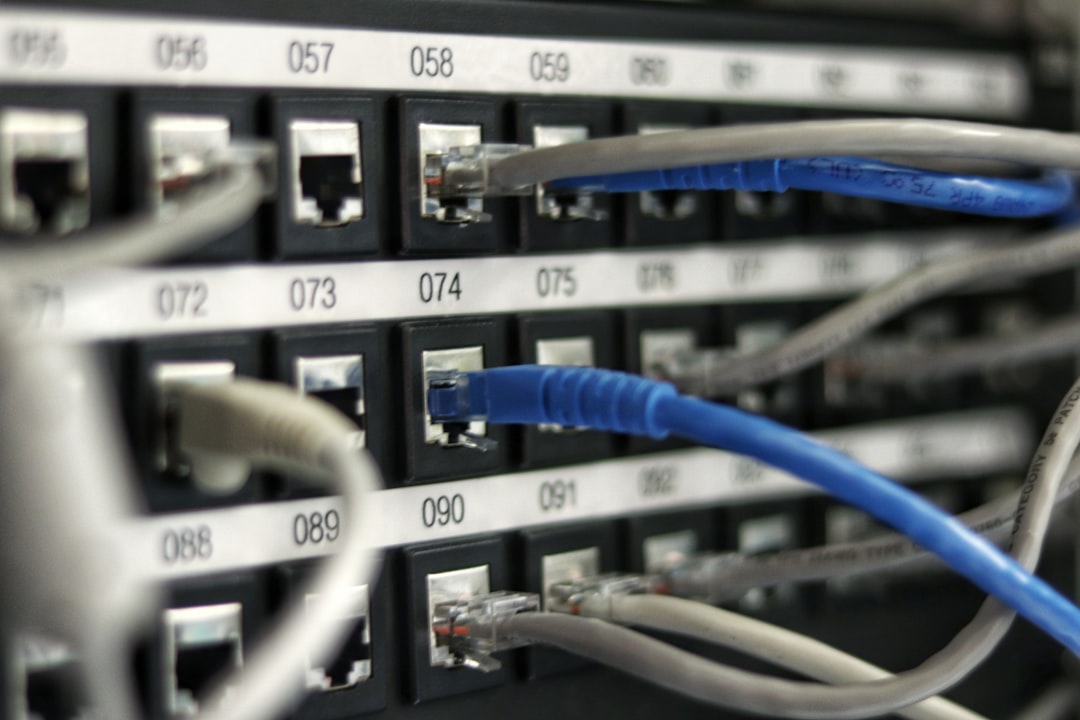
Network connectivity is the backbone of modern digital functionality. When a connection fails, the issue often stems from a breakdown in the communication chain between the local device, the networking hardware, and the external internet service provider (ISP). To effectively troubleshoot network problems, one must view the system as a hierarchical structure. At the foundation is the physical layer, involving cables and ports; above that, the data link and network layers handle IP addressing and signal routing.
The Hierarchy of Network Faults
Problems typically originate in one of three zones: the local device configuration, the home networking equipment, or the external infrastructure. By isolating these layers, technical analysis becomes more efficient. Consulting Cisco’s documentation on network troubleshooting provides a foundational understanding of how data packets traverse these layers. Recognizing that a signal failure might be as simple as a loose Ethernet cable or as complex as a DNS misconfiguration allows for a logical, step-by-step resolution process.
Phase 1: Local Device Verification
Before examining routers, verify the state of the individual device. A common yet frequently overlooked culprit is the network interface controller (NIC) or the Wi-Fi adapter. Toggling the wireless settings, known as performing a soft reset of the radio, often forces the device to re-authenticate with the access point. For users on Windows or macOS, accessing the system network diagnostics can reveal if the device has received a valid local IP address via DHCP. If the device displays an APIPA address (starting with 169.254.x.x), it signifies that the device cannot communicate with the router to obtain a configuration, pointing directly to a local handshake error.
Phase 2: Power Cycling and Hardware Inspection
The router acts as the gateway for all home or office traffic. Over time, memory leaks or firmware glitches can degrade performance. Executing a power cycle—unplugging the device for at least 30 seconds—clears the volatile cache and forces a fresh reload of the firmware. According to FCC guidelines on broadband optimization, ensuring that hardware is placed in a central, unblocked location is equally important to prevent thermal throttling or signal interference from physical obstructions.
Comparison of Common Connection Issues
| Issue Type | Likely Cause | Primary Resolution |
|---|---|---|
| Limited Connectivity | DHCP/IP Conflict | Release and renew IP |
| Intermittent Signal | Wi-Fi Interference | Change wireless channel |
| No Internet Access | ISP Outage | Check service status |
| Slow Throughput | Network Congestion | QoS configuration |
Phase 3: Advanced Configuration and Software Troubleshooting
If physical resets fail, delve into the Domain Name System (DNS) settings. DNS is the phonebook of the internet, translating domain names into IP addresses. If the ISP’s default DNS servers are failing, switching to Google Public DNS or other reputable services can resolve “page not found” errors instantly. Furthermore, checking for Windows network reset tools or command-line interface (CLI) commands such as ‘ipconfig /flushdns’ can clear corrupted local cache data that prevents browsers from resolving connections properly.
Phase 4: Evaluating ISP Infrastructure
When the local area network is confirmed functional but internet access remains absent, the fault likely lies with the ISP. Utilizing tools like Ookla Speedtest or the ISP’s dedicated status dashboard allows users to confirm if there is a known service outage in their geographic area. It is important to review ICANN guidelines regarding internet governance to understand the standard expected uptime and what service level agreements (SLAs) typically cover for residential vs. business connections.
Strategic Channel Management
Wireless congestion is a frequent source of poor performance. In dense environments, multiple routers often fight for the same 2.4GHz or 5GHz frequency band. Utilizing a Wi-Fi analyzer tool helps identify cleaner channels. Modern routers often support band steering, which automatically moves devices between frequencies to optimize bandwidth. For deeper technical insights, refer to the IEEE 802.11 standards which govern wireless communication protocols.
Frequently Asked Questions
Why does my device show a connection but no internet?
This situation usually indicates that the device has a valid connection to the router (Local Area Network), but the router itself cannot reach the internet (Wide Area Network). This is often due to an ISP-side outage, a modem authentication issue, or an incorrect DNS configuration. Start by checking the lights on your modem; if the ‘Internet’ or ‘WAN’ light is red or blinking, contact your service provider, as the issue is likely external to your home equipment.
How do I know if my Wi-Fi router is failing?
Hardware failure often presents as frequent, random reboots, the inability to save configuration settings, or severe overheating. If you notice your router requires a hard reset every few hours just to regain a signal, the internal components may be degrading. Consult the Wi-Fi Alliance resources to learn about modern hardware lifecycles and when it is time to upgrade to a newer Wi-Fi 6 or 6E standard.
What is the difference between a modem and a router?
A modem brings the internet signal into your home from the ISP, while a router distributes that signal to your devices via Wi-Fi or Ethernet. Many modern devices, known as gateways, combine both functions into one unit. Understanding this distinction is vital, as troubleshooting the modem involves checking the ISP link, while troubleshooting the router involves checking the internal network traffic and device assignments.
Does changing DNS settings actually improve speed?
Changing DNS settings can improve the perceived speed of your connection, especially during the initial lookup phase when you first click a link. While it does not increase your raw bandwidth (your ISP’s speed tier), it can reduce latency by utilizing servers that are closer to your location or more efficient at handling requests than the default servers provided by some ISPs.
How can I protect my network from unauthorized access?
Ensuring your network is secure is a fundamental part of maintaining connectivity. Use WPA3 encryption, a strong administrative password for the router’s dashboard, and disable WPS (Wi-Fi Protected Setup). Unauthorized devices consuming your bandwidth can cause artificial lag and instability, mimicking connection issues. Regularly review the list of connected devices in your router’s interface to ensure only trusted hardware is present.
Can VPNs cause connection drops?
Yes, Virtual Private Networks can occasionally cause connectivity issues if the encryption tunnel is unstable or if the VPN server experiences heavy load. If you experience dropouts, try disconnecting the VPN to see if the connection stabilizes. If it does, the issue is likely with the VPN client software or the specific server configuration you have selected. Always ensure your VPN software is updated to the latest version.
Why is my internet slower during certain times of the day?
This is frequently caused by network congestion at the ISP level, often referred to as ‘peak hours.’ In the evenings, when more users in your neighborhood are streaming high-definition content, the total bandwidth available to the neighborhood node may be stretched. While you cannot fix ISP-level congestion, using a wired Ethernet connection instead of Wi-Fi can help you maintain the maximum available speed during these periods.
Conclusion
Resolving connection issues requires a logical, methodical approach. By systematically isolating the device, the router, and the service provider, most connectivity problems can be identified and corrected. Start with the simplest physical checks, progress to software diagnostics, and ensure your hardware is properly configured. Should issues persist, professional intervention from your ISP remains the final, most reliable step in restoring consistent digital access.
