

Modern technology underpins nearly every aspect of daily life, yet device malfunctions remain an inevitable source of friction. When a workstation refuses to boot, a home router drops its connection, or peripheral hardware ceases to respond, productivity halts instantly. Understanding how to troubleshoot common technical problems step by step transforms a frustrating disruption into a manageable, methodical process. Rather than relying on guesswork or reactive measures, adopting a structured diagnostic methodology allows individuals and professionals to isolate root causes efficiently. Systematic troubleshooting minimizes downtime, prevents unnecessary hardware replacements, and builds long-term digital resilience.
The Foundations of Structured Technical Diagnostics
Effective technical diagnosis begins with establishing a clear understanding of the baseline state of a system before a failure occurred. When approaching a malfunctioning device, rushing into arbitrary changes often exacerbates the issue or introduces new variables. According to established IT service management frameworks documented by organizations like AXELOS, maintaining a standardized approach to incident management reduces error rates significantly.
The initial phase requires gathering objective data regarding the anomaly. System administrators and support specialists document error codes, observe behavioral patterns, and note environmental factors such as recent software updates or power surges. Establishing whether the issue is isolated to a single application or affects the entire operating environment narrows the scope of investigation. Separating hardware symptoms from software anomalies early in the process ensures that subsequent diagnostic efforts target the correct subsystems.

Phase One: The Power and Connection Audit
Many complex-seeming technical failures stem from simple physical disconnections or power delivery anomalies. Verifying basic infrastructure forms the most logical starting point for any diagnostic workflow. Engineers refer to this initial verification as checking the physical layer, which encompasses power cables, wall outlets, surge protectors, and data transmission lines.
- Inspect power supply units to ensure indicator lights function correctly and cables are seated securely.
- Test peripheral connections, including USB, HDMI, and Ethernet cables, by disconnecting and reconnecting them firmly.
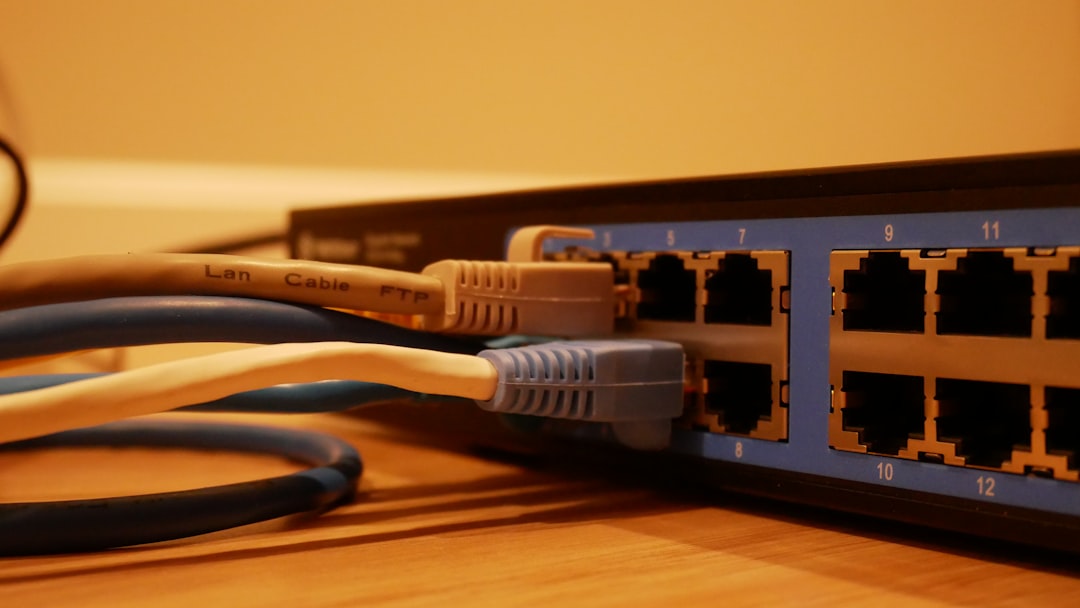
- Verify network link lights on routers, switches, and network interface cards to confirm physical data transmission paths are active.
- Check battery health and charging ports on mobile devices or laptops experiencing sudden shutdown behaviors.
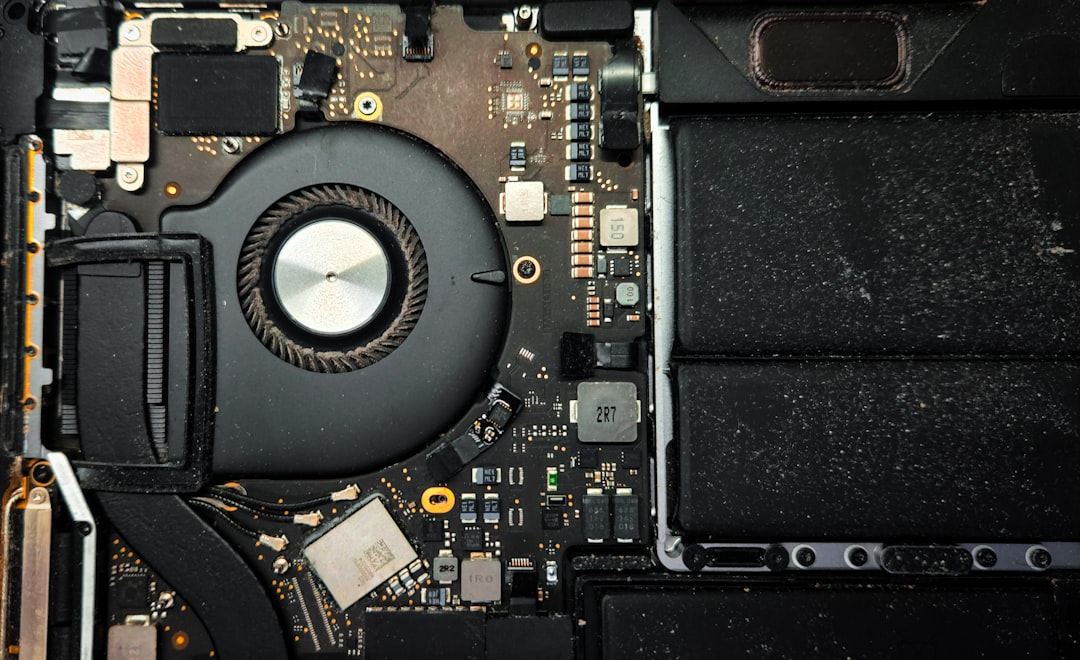
Physical inspection also involves checking for environmental stressors, such as dust accumulation obstructing ventilation fans or loose internal components resulting from physical shock. Addressing these physical variables eliminates superficial causes before moving toward software-level diagnostics.
Phase Two: Software Isolation and Safe Mode Diagnostics
When hardware infrastructure functions normally, software conflicts, corrupted drivers, or misconfigured settings usually account for system instability. Isolating software failures requires observing system behavior when non-essential third-party applications and drivers are disabled. Safe Mode execution in operating systems provides a clean environment loaded only with core system drivers.
Operating a computer in Safe Mode helps determine whether background processes or conflicting software extensions trigger crashes or performance bottlenecks. If a system operates normally in Safe Mode, a recently installed application, antivirus extension, or graphics driver update is typically the underlying culprit. Reverting the system to a previous restore point or uninstalling the most recent software updates resolves the conflict in the majority of such instances.
Comparative Overview of Diagnostic Approaches
| Diagnostic Strategy | Primary Use Case | Advantage | Limitation |
|---|---|---|---|
| Power and Connection Audit | Sudden shutdowns, offline peripherals, no display | Quick to execute, resolves physical layer issues immediately | Does not diagnose deep software corruption or logic board failures |
| Safe Mode Isolation | Persistent crashes, boot loops, driver conflicts | Isolates third-party software interference safely | Limits access to full hardware acceleration and peripheral functionality |
| Network Packet Analysis | Intermittent connectivity, high latency, DNS failures | Pinpoints exact routing or bandwidth bottlenecks | Requires technical familiarity with command-line networking tools |
| System Event Logging | Intermittent errors, background service failures | Provides historical context and specific error codes | Logs can be voluminous and difficult to parse without filtering tools |
Resolving Network and Connectivity Failures
Network anomalies frequently interrupt digital workflows, manifesting as slow page load speeds, dropped video conferencing packets, or complete loss of internet access. When addressing connectivity issues, following a hierarchical path from the local device outward to the Internet Service Provider ensures accurate fault isolation.
The process begins by verifying local network status using command-line diagnostic tools. Executing a basic loopback test or pinging the local gateway confirms whether the network interface card communicates effectively with the local router. If local communication succeeds but external websites remain unreachable, the issue likely resides with Domain Name System resolution or ISP routing tables. Flushing the local DNS cache and restarting the modem and router re-establishes fresh routing handshakes, frequently clearing transient packet-handling errors.
Utilizing System Event Logs for Advanced Troubleshooting
When surface-level fixes fail to resolve recurring technical malfunctions, deeper analytical tools become necessary. Operating systems maintain detailed logs of background activities, hardware warnings, and application crashes. Reviewing these logs provides objective data regarding system stability over time.
Event viewer utilities categorize entries by severity levels, distinguishing between informational notices, warnings, and critical errors. Cross-referencing specific error codes found in these logs against vendor knowledge bases or technical documentation pinpoints exact software bugs or failing hardware sectors. This data-driven approach removes subjectivity from the diagnostic process, enabling precise remediation strategies.
Maintaining Long-Term System Stability
Troubleshooting technical problems effectively extends beyond immediate reactive fixes into proactive system maintenance. Implementing regular update schedules for operating systems, firmware, and security software prevents vulnerabilities from developing into critical failures. Establishing routine data backup protocols safeguards valuable information against unforeseen hardware degradation or catastrophic software corruption. Documenting recurring issues and their successful resolutions creates an internal knowledge base, streamlining future diagnostic efforts and reducing overall resolution time.
Frequently Asked Questions
What is the first step to take when a device freezes completely?
The immediate step is to wait a brief moment to see if the system recovers from a temporary resource spike. If unresponsiveness persists, initiating a hard restart by holding down the power button for several seconds forces the system to clear temporary memory states and reboot.
How can I determine if a slow computer is caused by hardware or software?
Opening the system resource monitor helps identify utilization bottlenecks. If the processor, memory, or disk usage remains constantly at one hundred percent due to background applications, the issue is software-related. If resource usage is low but the system lags significantly during basic operations, hardware deterioration or thermal throttling may be occurring.
Why does restarting a router fix temporary internet connection issues?
Routers operate as small computers with limited memory and processing power. Over time, memory fragmentation, background buffer overflows, or overheating can cause the routing software to stall. Restarting clears the volatile memory and reestablishes fresh connection tables with the internet service provider.
Is it safe to use system registry cleaners on a modern operating system?
Modern operating systems manage internal configuration databases efficiently on their own. Utilizing third-party registry cleaners often introduces risks of deleting valid configuration keys, leading to system instability or application failures. Maintaining system health through official update channels is strongly recommended.
Conclusion
Mastering how to troubleshoot common technical problems step by step is an essential competency in a technology-driven environment. By approaching malfunctions methodically—beginning with physical power and connections, moving through software isolation, utilizing diagnostic logs, and maintaining proactive system care—users maintain operational continuity and minimize frustration. Systematic technical analysis replaces guesswork with precision, ensuring that digital tools remain reliable, efficient, and resilient against unexpected disruptions.
Featured Image Credit: Generated/Sourced via Unsplash.
Inline Images Credit: Sourced from Pexels, Unsplash, Pixabay, NASA, Wikimedia, and Openverse free stock databases.
Disclaimer: This article is AI-generated for informational and educational purposes. While we strive to provide high-quality context and authority, the content should not be used as professional advice. The author/website assumes no liability for external links or factual omissions.
